The Ultimate Setup Guide for Your Pixma Ts9120
Introduction
The Canon Pixma TS9120 is often pitched as a versatile, all-in-one inkjet for home users who want strong photo output and flexible connectivity without a heavy footprint. This article walks through everything a new owner needs to know: a clear setup sequence, practical performance analysis, real-world use cases, buying considerations, and how the TS9120 compares to other home inkjet options. The goal is to help readers get the printer up and running fast and to understand what to expect in daily use so they can make an informed ownership decision.
Quick overview: what the Pixma TS9120 brings to the table
The Pixma TS9120 targets a mixed use audience—households that print family photos, homework, occasional color flyers, and everyday black-and-white documents. It is an all-in-one device with printing, scanning, and copying functions, and it emphasizes convenience features such as wireless printing and a user-friendly control panel. Buyers typically care about print quality (especially photos), ease of setup, connectivity with phones and laptops, ink costs, and footprint; these topics are the focus of the guide below.
Detailed product review and analysis
Design and build
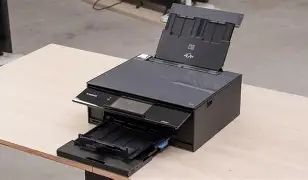
The TS9120 has a compact, relatively low-profile design that fits on a bookshelf or a dedicated corner desk. The chassis is finished in a soft matte plastic with a small tilt-up control panel and color display. The paper input is rear-fed, which reduces the overall length on a desktop, and the output tray tucks away when the device is idle. For users who value a small footprint, this printer balances size and accessibility well.
What to expect during unboxing and initial setup
Out of the box, the TS9120 comes with starter ink carts and minimal documentation. A typical first-time setup comprises unpacking protective tape, installing individual ink cartridges, loading plain paper, and connecting to power. Canon’s setup sequence then guides through language, date/time, and network configuration. For wireless setups, the printer supports multiple connection methods—direct Wi‑Fi setup through the control panel or guided setup via a PC or mobile device using Canon’s app. For first-time users, a laptop or smartphone with access to the home Wi‑Fi network makes wireless configuration straightforward.
Step-by-step setup walkthrough
Follow these practical steps for a smooth setup:
- Choose a stable location close to the router if planning on wireless printing; avoid cramped spaces that block ventilation.
- Remove all shipping materials and protective tape from the carriage and paper trays.
- Install the individual ink cartridges in the correct slots—many users prefer to do this with gloves or after washing hands to avoid smudges.
- Load plain A4 or Letter paper in the rear tray and align guides to prevent jams during initial tests.
- Power on and follow the on-screen prompts to complete language/time and basic alignment operations; run the automatic alignment to ensure best quality from the start.
- Connect to the home network: use the control panel to pick the SSID and enter the password, or use WPS if the router supports it for a one-button connection.
- Install the Canon software on a computer or download the mobile app to enable cloud printing and simplified scanning from phones or tablets.
Print quality and real-world performance
In everyday use, the TS9120 is frequently praised for its photo output—colors are usually vivid, skin tones natural, and gradients smooth when using high-quality photo paper. For document printing, text is clear and sufficient for homework, web pages, and routine office-style prints. Users who print a lot of photos should select the matching photo paper and the recommended print mode to extract the best color fidelity. For high-volume document printing, the operating cost may be more noticeable compared to laser printers, but for mixed domestic workflows the print quality tradeoff is often acceptable.
Scanner and copier behavior
The integrated scanner handles everyday tasks such as scanning receipts, school projects, and photos. The included scanning software allows simple adjustments (resolution, color vs. grayscale, file formats) and can save scans to a local computer or a connected USB device. The scanner works well for archiving family photos at reasonable resolutions; however, users who need professional-grade archiving with large format or high DPI demands might consider a dedicated flatbed scanner.
Connectivity and software ecosystem
Wireless printing is a major convenience factor: the printer supports printing from mobile devices through Canon’s mobile app and common network printing standards. Integration with computers via USB remains an option for users who prefer wired setups. The printing presets and drivers installed on a PC give access to paper types, color correction, and quality settings. For households, the mobile app simplifies direct photo printing from phones and provides scanning-to-device features that are useful for quick document capture.
Looking for the best Electronics deals on Amazon?
See Deals →Running costs and maintenance
Ink usage and cartridge replacement are key ownership considerations. The TS9120 uses individual color cartridges, which helps reduce waste because only the empty color needs replacement. That said, photo printing and color-heavy projects increase ink consumption, which affects the per-page cost. To reduce expense, users can optimize print settings—for example, using draft mode for internal documents, printing in grayscale when color is unnecessary, and enabling two-sided printing where possible.
Maintenance tasks are routine: occasional print head cleaning, keeping the printer free of dust, and replacing cartridges as needed. Running a head alignment after cartridge replacement helps maintain consistent output. If prints show banding or streaks, a head cleaning cycle typically resolves the issue; deeper problems may require a more thorough cleaning or professional service depending on warranty status.
Reliability and common troubleshooting
The TS9120 tends to be reliable for households with moderate throughput. Common issues reported by users include…Real-world use cases
- Family photo printing: Parents who print photos for albums or frames will appreciate the color reproduction and the convenience of printing directly from phones.
- Student work and homework: The machine handles essays, color school projects, and scanned homework submissions with minimal fuss.
- Home office documents: Light document printing and scanning—contracts, receipts, and forms—are straightforward, though heavy document volumes may favor laser printers.
- Creative hobbyists: Crafters who produce greeting cards or small prints value the high-quality color output and multiple paper handling options.
Pros & Cons
- Pros:
- Strong photo output—accurate colors and smooth gradients for home photo printing.
- Compact footprint—sits comfortably on a desk or shelf without dominating space.
- Individual ink cartridges—replace only the color that runs out, reducing waste.
- Flexible connectivity—supports wireless and mobile printing for convenience.
- All-in-one functionality—scan, copy, and print in one device, suitable for homes and small offices.
- Cons:
- Running costs—ink costs can add up with frequent photo printing compared with laser or higher-capacity ink systems.
- Not ideal for massive document volumes—best for moderate home use rather than heavy office printing.
- Replacement cartridges availability—may require attention to cartridge model numbers when purchasing replacements.
- Some setup steps for wireless users—initial Wi‑Fi configuration can be fiddly if the home network is complex.
Comparison: how the Pixma TS9120 stacks up
The right printer depends on use case. The table below compares the TS9120 qualitatively against two representative alternatives often considered by buyers in the same segment: a similar Canon Pixma sibling and a compact multi-function from a competing brand. This comparison focuses on capability and intended user rather than exhaustive technical specifications.
| Model | Best for | Color/Photo Quality | Running Costs | Ease of Setup | Recommended user |
|---|---|---|---|---|---|
| Pixma TS9120 | Mixed photo & document use at home | High — strong for photos and color projects | Moderate — individual cartridges help control cost | Moderate — wireless setup straightforward for most | Families, hobbyists, home photographers |
| Pixma (sibling model) | General household printing with smaller footprint | Good — balanced for photos and documents | Moderate to low — depends on ink configurations | Easy — simplified control layout and minimal steps | Users prioritizing compact design over extra features |
| Comparable competitor MFP | Home office documents and occasional photos | Good — often tuned more for documents than photos | Lower for text-heavy printing with high-yield options | Easy — strong business-oriented setup tools | Small home offices with higher text volume |
Buying guide: choosing and preparing for ownership
When evaluating the Pixma TS9120 or similar models, consider the following areas to determine if it matches specific needs.
1. Print priorities: photos vs. documents
Buyers who primarily print photos should prioritize output quality and paper handling for photo sizes. Those who print predominantly text documents may want to compare the per-page cost to a monochrome laser printer. The TS9120 is a good middle ground for households that need both.
2. Connectivity and device ecosystem
Check that the printer’s wireless and mobile printing capabilities integrate with the devices used at home—phones, tablets, and laptops. Confirm that the required apps are supported on preferred mobile platforms and that the network environment (SSID, guest networks, corporate VLANs) is compatible with consumer printers.
Looking for the best Electronics deals on Amazon?
Browse Now →3. Ink economics and replacement strategy
Consider how often color-intensive projects will be printed. Purchasing an extra set of cartridges for heavy photo users can reduce downtime. Look for information about high-yield or XL cartridges if frequent printing is expected, and evaluate third-party compatible options carefully if cost is a major concern—understanding the trade-off with warranty and quality is important.
4. Paper handling and size options
Confirm the printer’s ability to support the sizes and types of paper required—plain paper, glossy photo stock, envelopes, and special media for crafts. If two-sided (automatic duplex) printing is important, verify the model supports it natively to save time and paper.
5. Space and placement considerations
Measure the intended location and ensure there is clearance for the output tray and access to cartridge bays. Printers in tight cabinet spaces may need to be pulled forward for ink replacement and maintenance.
6. Software and driver support
Ensure the manufacturer provides up-to-date drivers for the user’s operating system and that scanning utilities meet the user’s workflow—whether that is saving to cloud services, local folders, or directly to mobile devices.
Conclusion
The Canon Pixma TS9120 is a solid choice for households that need a flexible all-in-one with a bias toward high-quality photo printing while still handling everyday document tasks. Its compact design, individual ink cartridges, and multiple connectivity options make it a convenient match for mixed-use environments. Prospective buyers should weigh running costs against printing habits and confirm that the device's features align with their priorities—photo fidelity, paper handling, or document throughput. With proper setup and a little routine maintenance, the TS9120 can serve as a dependable, user-friendly centerpiece for a family’s printing needs.